The Screen Insets section in the Figblox Studio plugin sets which safe-area mode Figblox uses when wiring UI into Studio. It mirrors Roblox’s ScreenInsets enum on ScreenGui.ScreenInsets.
After inset mode is set, use Layers to adjust per-element anchor points and visibility before confirming import changes.
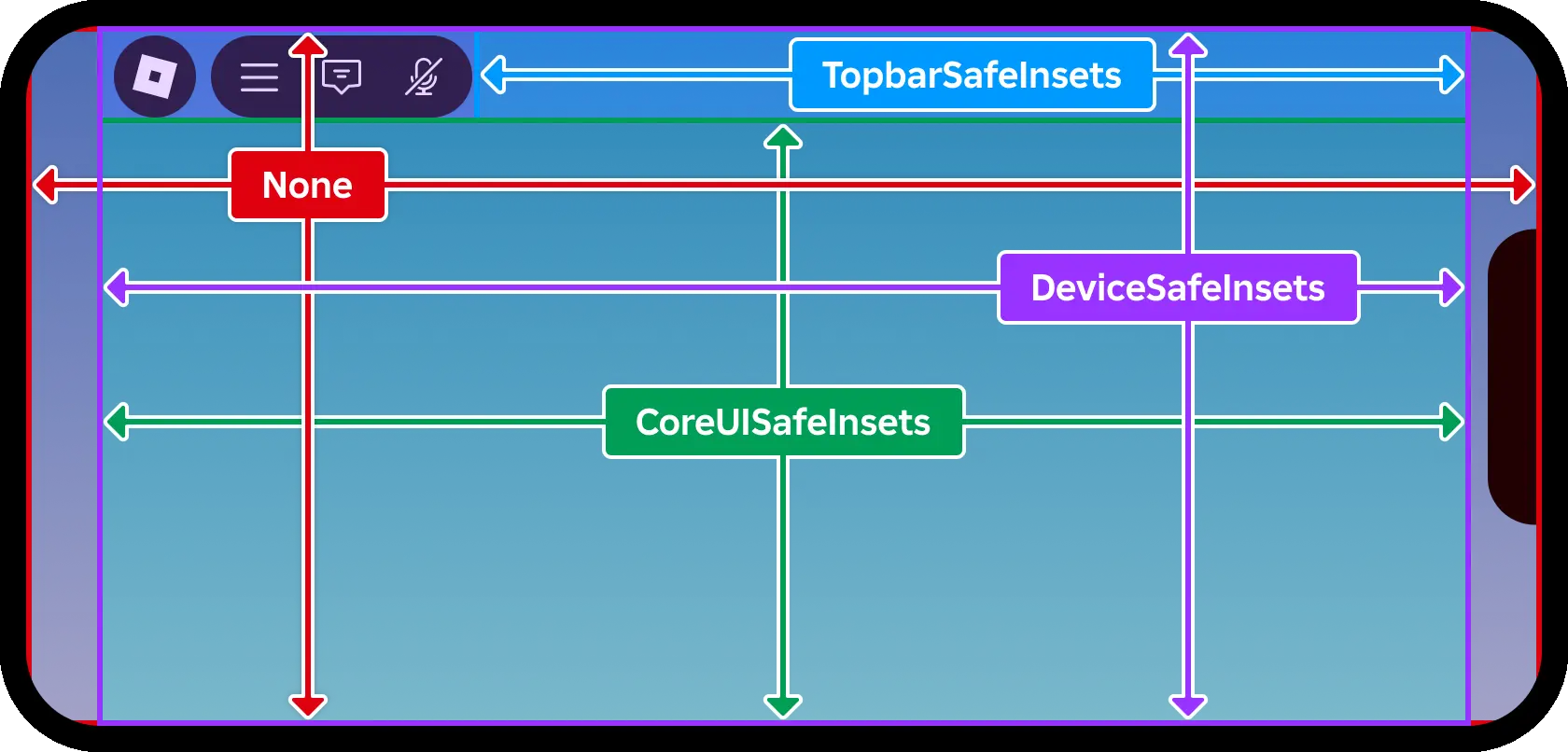
- None
- Maps to
Enum.ScreenInsets.None. Full-bleed relative to the screen, with no extra insets. Best for non-interactive backgrounds; content can sit under device cutouts or core UI. - Device Safe
- Maps to
Enum.ScreenInsets.DeviceSafeInsets. Avoids device cutouts (notches, rounded corners). Does not account for Roblox core chrome such as top-bar buttons. - Core UI
- Maps to
Enum.ScreenInsets.CoreUISafeInsets. Insets for device cutouts and core UI, so interactive HUD stays unobstructed. - Topbar Safe
- Maps to
Enum.ScreenInsets.TopbarSafeInsets. Uses the dynamic top-bar safe region (outside core UI insets). Useful for overlays anchored next to experience controls. See also Roblox GuiService.TopbarInset.